User Guide
About RecruitIn

RecruitIn is a desktop app for recruiters in Singapore to keep track of the plethora of clients with different skill sets, availability and experience.
It is optimized for quick text-based inputs via a Command Line Interface (CLI) while still having the ease of use of a Graphical User Interface (GUI).
This product will make recruiters’ lives easier through categorisation and filter features to easily access candidates they have in mind.
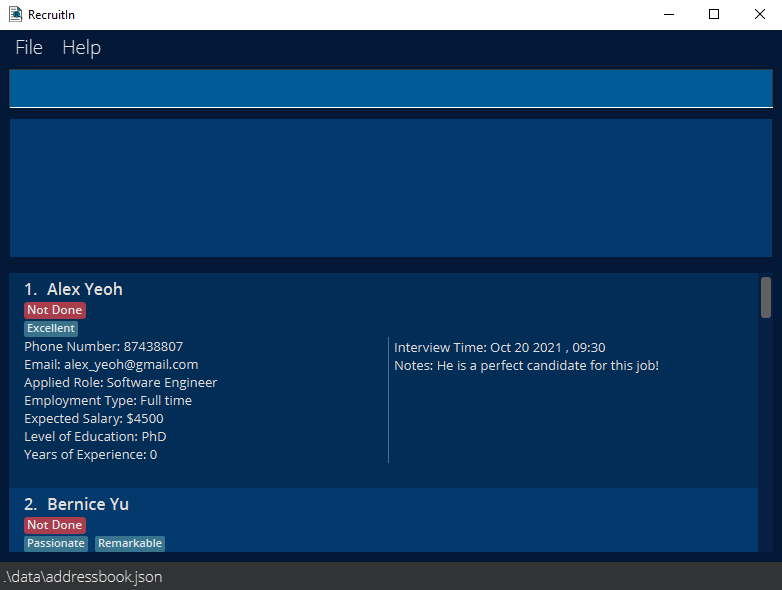
Table of Contents
- About RecruitIn
- About this guide
- Glossary
- Basic Command Format
- Quick start
-
Features
- Viewing help :
help - Adding an applicant:
add - Editing an applicant:
edit - Listing all applicants :
list - Deleting an applicant :
delete - Finding an applicant :
find - Filtering interviews :
filter_interview - Showing search terms :
show - Marking an applicant :
mark - Unmarking an applicant :
unmark - Deleting marked applicants :
delete_marked - Clearing all data :
clear - Exiting the program :
exit - Saving the data
- Editing the data file
- Viewing help :
- Prefix Parameter Specifications {Advanced}
- FAQ
- Command summary
About this guide
This guide aims to help users get familiar with using RecruitIn’s features.
- New users can get started by following the steps under Quick start.
- Existing users can view existing features under Features or refer to the Table of Contents below to view specific features. A summary of existing features can also be viewed under Command summary.
- Advanced users can view in-depth usage of RecruitIn’s features by visiting links marked with {Advanced} under the Table of Contents.
- Commonly addressed questions can be viewed under FAQ.
 Note for all users:
-
If this is your first time reading this user guide, it is recommended that you visit Glossary & Features to familiarize yourself with the terminology and text formatting used in this user guide. This will help you better understand the user guide.
-
If you still wish to skip directly to the feature descriptions, or if you need a refresher on the important terminologies and text formatting used in this user guide, you may visit Basic Command Format.
Glossary
| Term | Definition |
|---|---|
| Command Line Interface (CLI) | A CLI is a user interface that accepts text input to execute system functions. RecruitIn uses a CLI interface to operate most of its features. |
| Command | Commands are user text inputs that executes certain features of RecruitIn. |
| Prefix | A Prefix is a fixed text input that indicates an applicant’s detail. For instance, n/ is a Prefix that indicates an applicant’s name.It is used in commands to differentiate user inputs for different applicant details. |
| Parameter | A Parameter is a user text input that usually follows after a Prefix. For instance, in n/John, John is a Parameter of Prefix n/.In some cases, it does not have to follow a Prefix. For instance, in delete 1, 1 is a Parameter of the delete command. |
Basic Command Format
Before moving on with this user guide, listed below are some important text formatting that you should take note of so that you may better understand our feature descriptions.
- Words in
UPPER_CASEare the parameters to be supplied by you, the user.
e.g. in add n/NAME, NAME is a parameter which can be used as add n/John Doe. - Words that are bold & italicized refers to a stored applicant detail for a certain prefix.
e.g. Name could refer to the valueJohnstored as a name in the application. - Items in square brackets are optional.
e.g.n/NAME[t/TAG]can be used as n/John Doe t/friend or as n/John Doe. - Items with
...after them can be repeated multiple times, including zero times.
e.g.delete INDEX...can be used asdelete 1(i.e.INDEXrepeated 0 times),delete 1 2,delete 2 4 3etc.
Quick start
- Ensure you have Java
11or above installed in your Computer. If not, you can install it from here. Download the correct version based on your operating system (e.g. Linux, macOS, Windows) and follow the Java installation instructions.
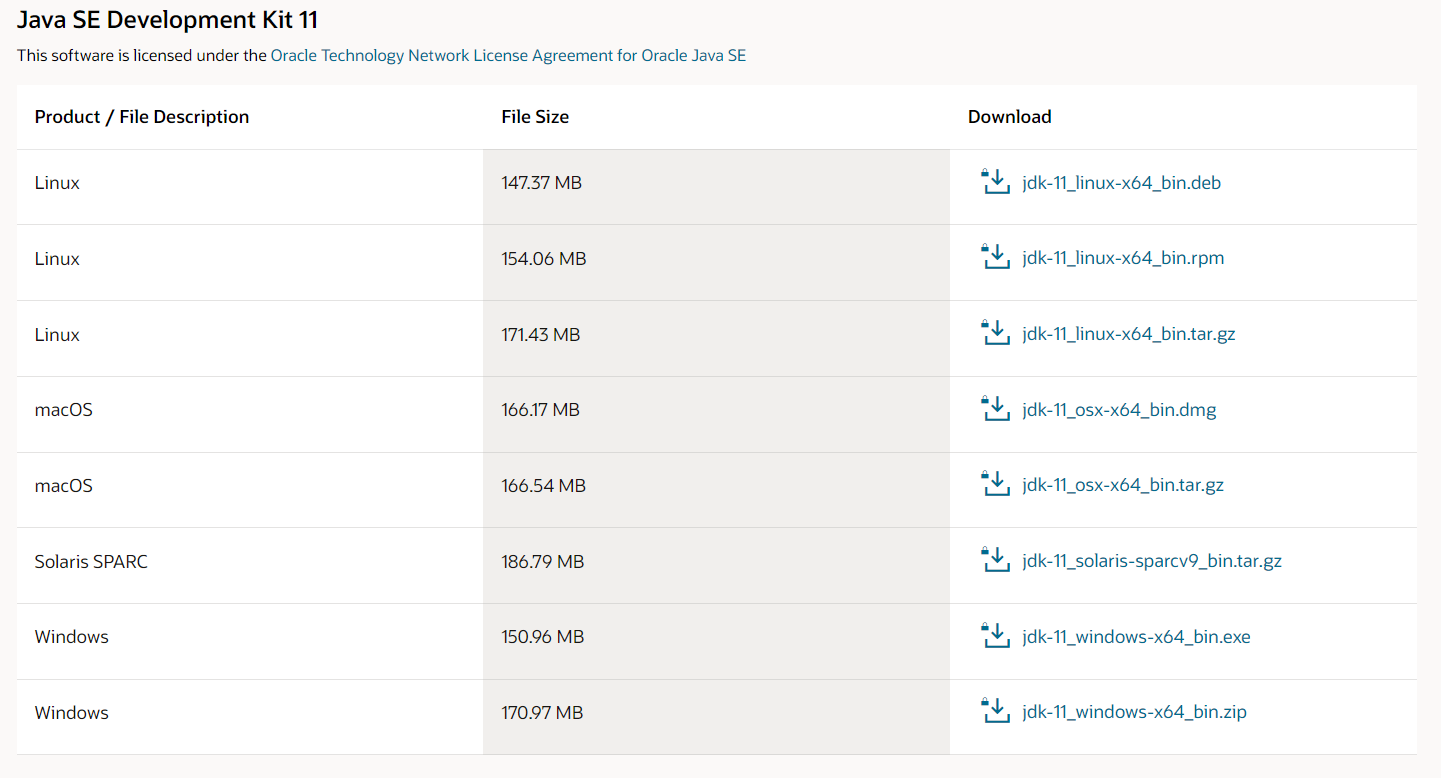
Visit the link and scroll down to find Java SE Development Kit 11 as shown above.
-
Download the latest
recruitIn.jarfrom here. Scroll down to the bottom and click onrecruitIn.jar. -
Copy the file to the folder you want to use as the home folder.
-
Double-click the file to start the app. The GUI should be similar to the below image. Note how the app contains some sample data.
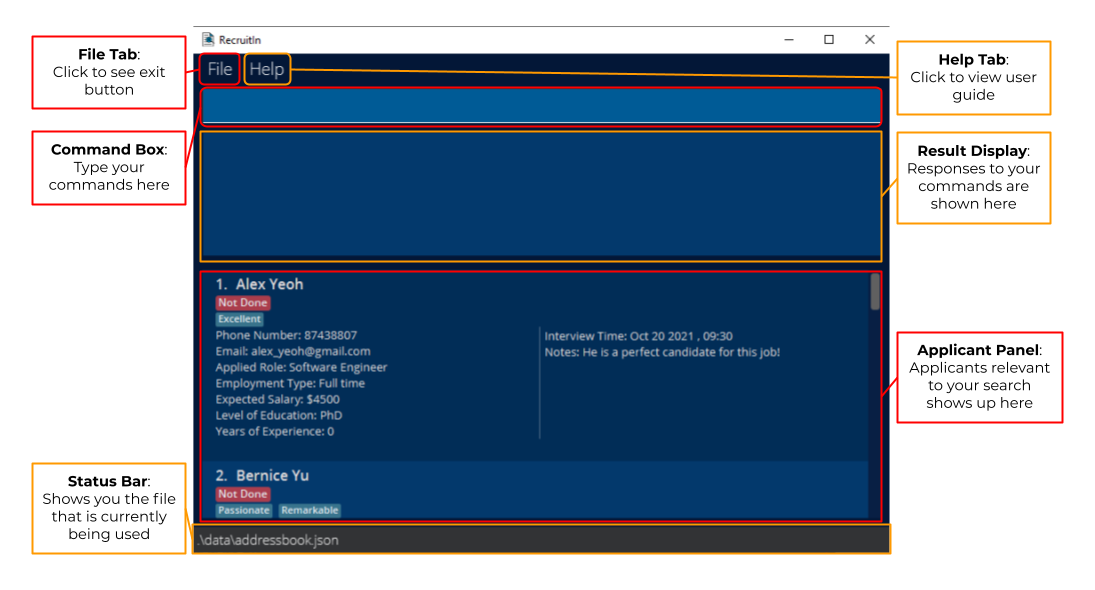
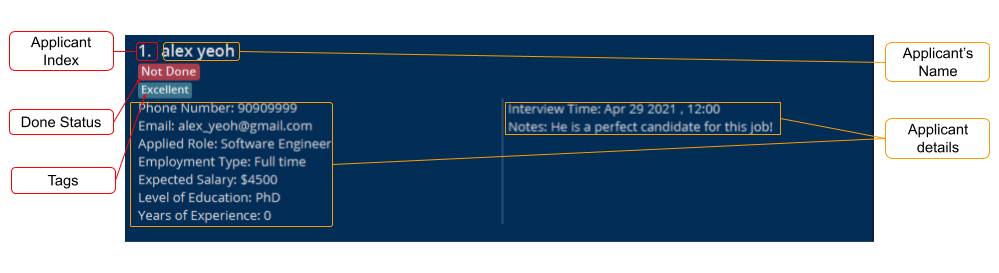
Applicant data are displayed as a list in the Applicant Panel.
-
Now that your app is set up and running, lets run through a quick sample workflow on managing an applicant:
Type in your commands into the Command Box and press Enter to execute it.- e.g. typing
helpand pressing Enter will open the help window.
- Use
clearcommand to clear the existing sample data.
- Suppose you have an applicant named
John Doeand you want to add him to your list of applicants.John Doehas kindly provided you his phone number,98765432and emailJohnDoe@gmail.com. He is applying for the role of aTeacherand plans to workFull timewith an expected salary of3000. His highest level of education isBachelorsand has4years of experience as a teacher.
Type inaddn/John Doe p/98765432 e/JohnDoe@gmail.com r/Teacher et/Full time s/3000 l/Bachelors y/4to addJohn Doeto your list of applicants.
- Let’s also add in another applicant named
Mary Sue. Her phone number is91131513and her email isMarySue@gmail.com. She is applying for the role of aSoftware Engineerand is looking for anInternshipwith an expected salary of3000. Her highest level of education isHigh Schooland has0years of experience as aSoftware Engineer.
Type inaddn/Mary Sue p/91131513 e/MarySue@gmail.com r/Software Engineer et/Internship s/3000 l/High School y/0.
Your application should look like this: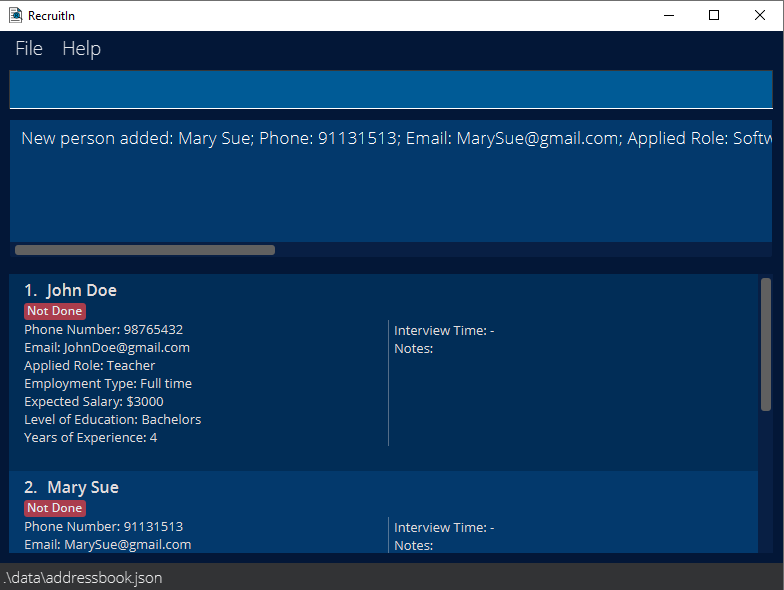
- As an experienced recruiter, you notice that
Mary Suemay not have the qualifications for the job as aSoftware Engineerand want to add a note to remind yourself.
Type inedit2 nt/She might not have the qualifications for the jobto add the note toMary Sue.
Your application should look like this: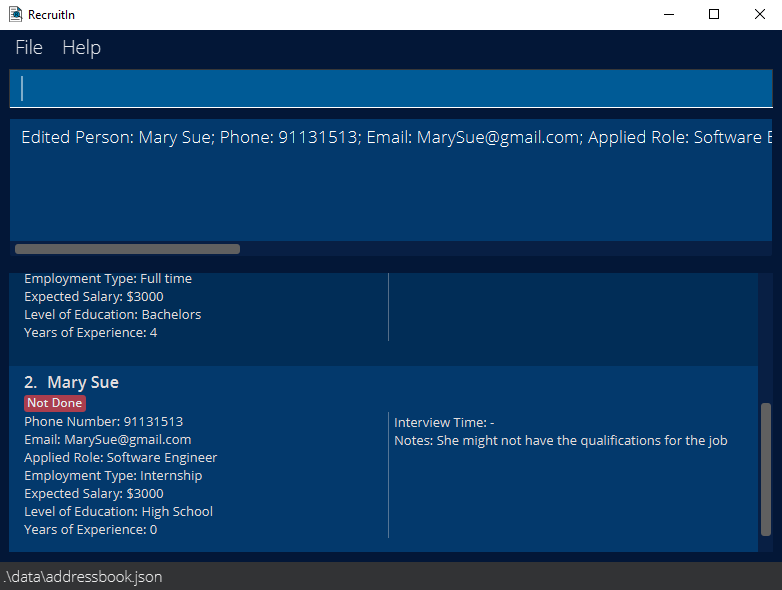
- Your company then informs you that they would like to interview
John Doeon December 11th 2021 at 10 am2021-12-11, 10:00and you want to remind yourself that an interview has been arranged forJohn Doe.
Type inedit1 i/2021-12-11, 10:00to add this interview slot toJohn Doe.
Your application should look like this: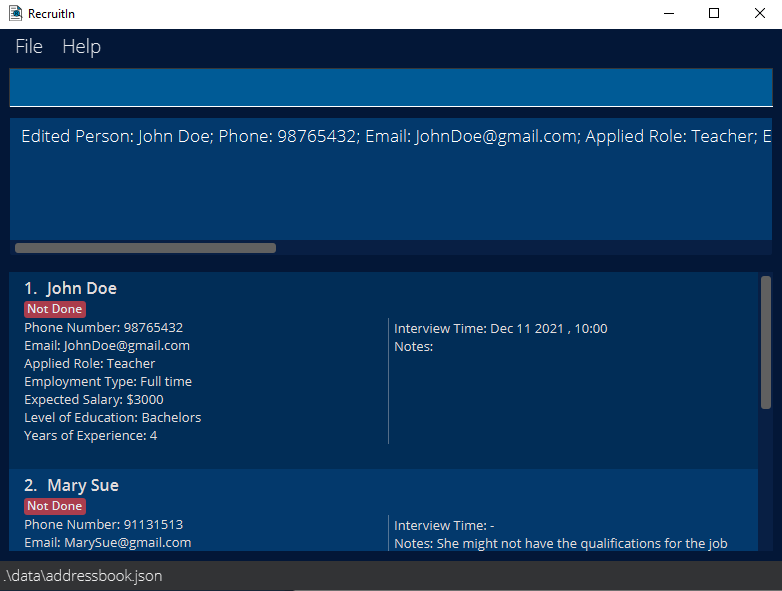
- Fast forward the time. Your company informs you that
John Doehas passed his interview and is hired.
Type infindn/John Doe p/98765432to findJohn Doe.
Type inmark1to markJohn Doeas Done.
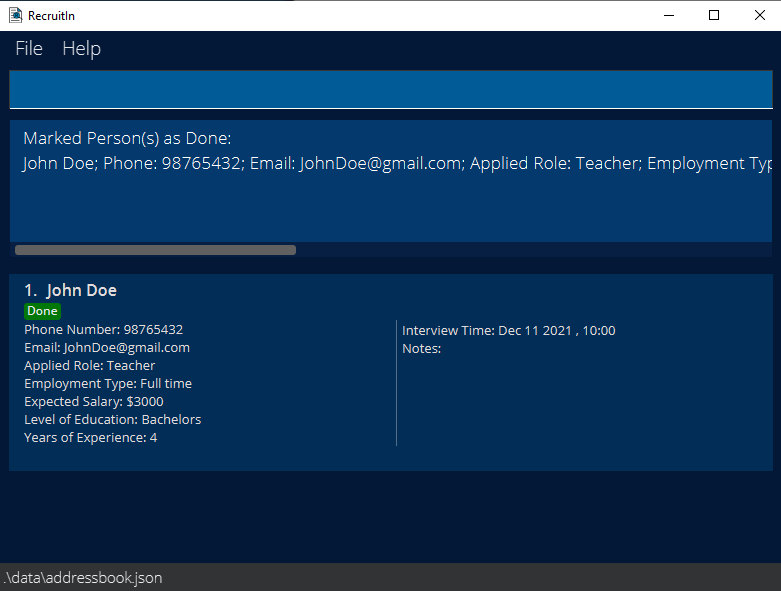
- Type in
listto go back to your list of applicants.
Type indelete_markedto remove all applicants marked as Done, such asJohn Doe.
NowJohn Doeis removed from your list of applicants.
- e.g. typing
-
Aside from the commands shown in the sample workflow above, you may also find these useful:
 Caution:
The commands given below are not related to the sample workflow given above and are given strictly as example usages.
Caution:
The commands given below are not related to the sample workflow given above and are given strictly as example usages.
-
delete2: Deletes the second applicant in your currently displayed list. -
shows/: Displays all unique expected salaries currently in RecruitIn. -
unmark1: Unmarks the 1st applicant shown in the list of all applicants. -
filter_interviewpast: Displays all applicants whose interviews are in the past, relative to current date and time. -
filter_interviewfuture: Displays all applicants whose interview are in the future, relative to current date and time. -
exit: Exits the app.
-
-
This marks the end of the Quick Start guide. If you would like to know more about using RecruitIn’s features, you can refer to the Features below for details of available commands.
Features
Notes about the command format:
-
Words in
UPPER_CASEare the parameters to be supplied by the user.
e.g. inadd n/NAME,NAMEis a parameter which can be used asadd n/John Doe. -
Words that are bold & italicized refers to a stored prefix value. e.g. Name could refer to the value
Johnstored as a name in the application. -
Items in square brackets are optional.
e.gn/NAME [t/TAG]can be used asn/John Doe t/friendor asn/John Doe. -
Items with
… after them can be repeated multiple times, including zero times.
e.g.delete INDEX...can be used asdelete 1(i.e.INDEXrepeated 0 times),delete 1 2,delete 2 4 3etc. -
Parameters can be in any order.
e.g. if the command specifiesn/NAME p/PHONE_NUMBER,p/PHONE_NUMBER n/NAMEis also acceptable. -
If a parameter is expected only once in the command, but you specified it multiple times, only the last occurrence of the parameter will be taken.
e.g. if you specifyp/12341234 p/56785678, onlyp/56785678will be taken. -
Extraneous parameters for commands that do not take in parameters (such as
help,list,exitandclear) will be ignored.
e.g. if the command specifieshelp 123, it will be interpreted ashelp.
Notes about the applicants:
- Duplicate applicants are not allowed. For two applicants to be duplicate, they must have either the same Phone Number or Email or both.
An error message will show if you attempt toaddoreditapplicants in a manner that will lead to duplicate stored applicants.
Caution:
- You are advised to not edit the
preferences.jsonfile unless you have a clear purpose.
Viewing help : help
The help command shows a message explaining how to access the help page.
Alternatively, you can click on the Help button to access the help page as well.

Format: help
Adding an applicant: add
The add command adds an applicant to RecruitIn.
Format: add n/NAME p/PHONE_NUMBER e/EMAIL_ADDRESS r/ROLE et/EMPLOYMENT_TYPE s/EXPECTED_SALARY l/LEVEL_OF_EDUCATION y/YEARS_OF_EXPERIENCE [t/TAG] [i/INTERVIEW] [nt/NOTES]
- To add multiple tags, multiple
t/prefixes should be used.
Caution:
Providing multiple tag values in a single t/ prefix will lead to an error.
(i.e. add n/John p/90909090 e/john@gmail.com r/Software Tester et/Full time s/4500 l/High School y/3 t/smart helpful will lead to an error)
- Parameters for each prefix is taken as a single value. (i.e.
r/software engineerhas the valuesoftware engineer)
Examples:
add n/Bob p/87654321 e/bob@gmail.com r/Software Engineering et/Full time s/4000 l/High School y/2 i/2021-10-21, 20:00 nt/This applicant has the credentials needed for this job.-
add n/John p/90909090 e/john@gmail.com r/Software Tester et/Full time s/4500 l/High School y/3 t/smart t/helpfulto add a person namedJohnwith two tagssmartandhelpful
Before: 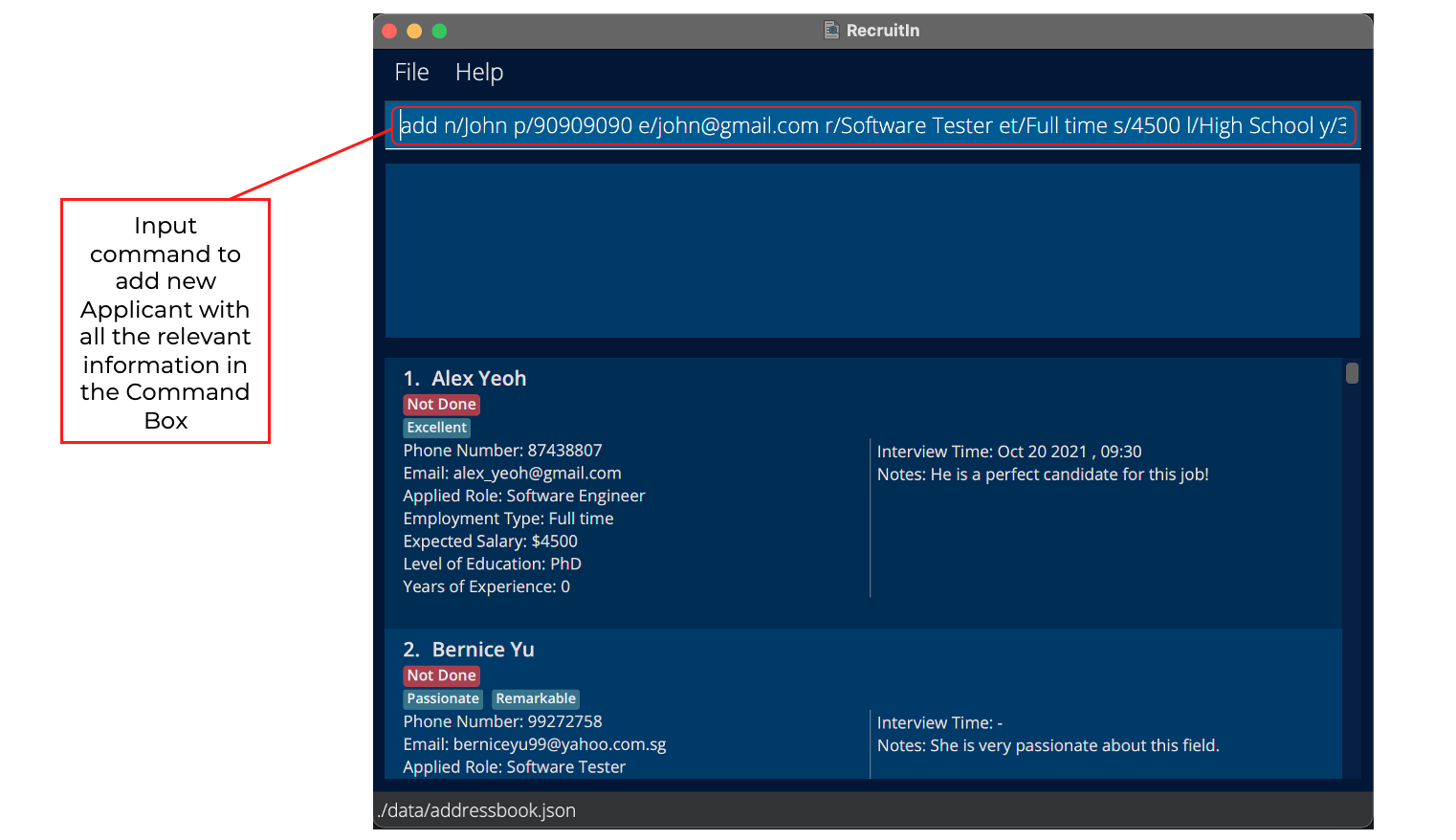
After: 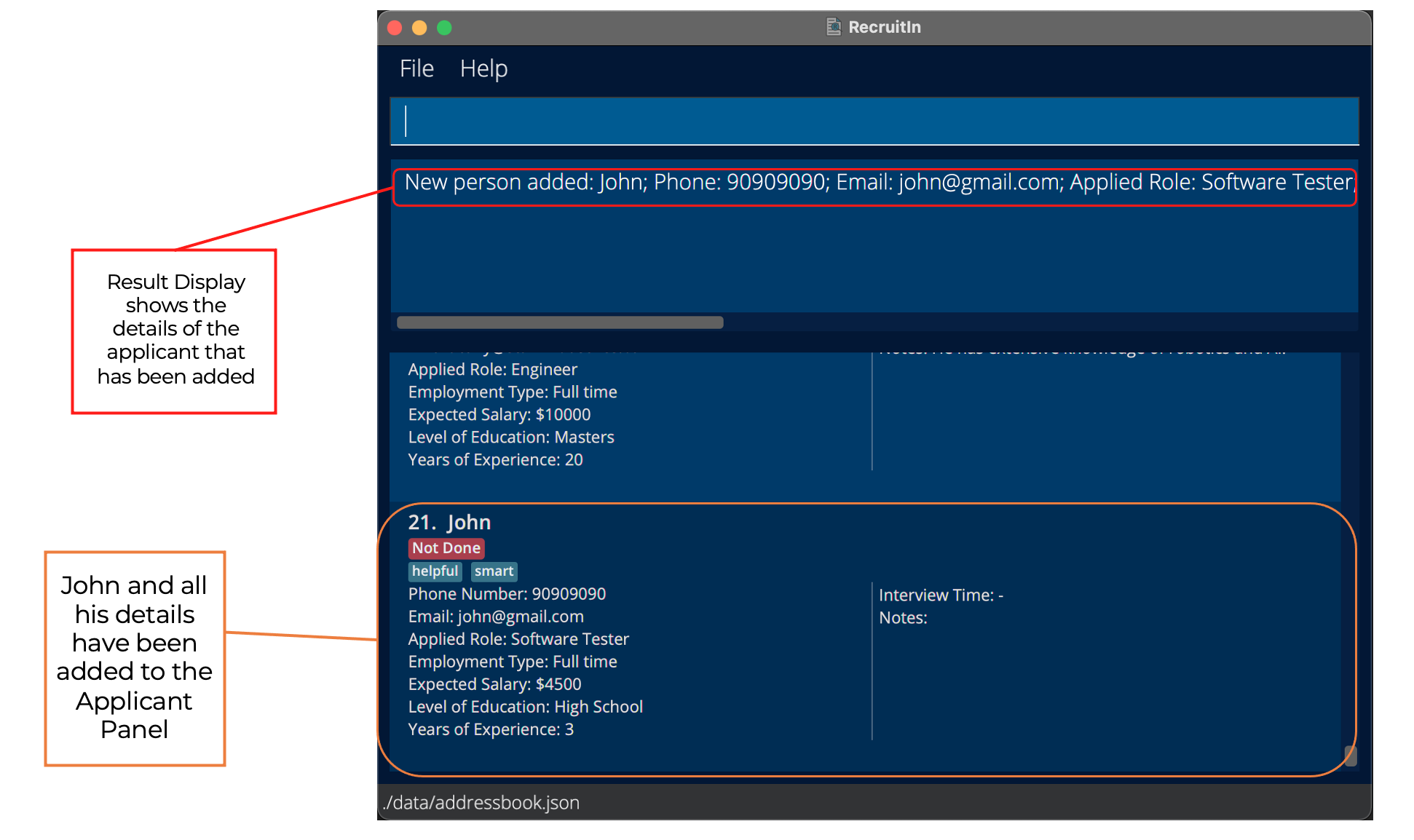
Prefix parameters for add command must follow the following parameter specifications:
- You may
- refer to Add Parameter Specifications for detailed parameter specifications.
- refer to add parameter specifications for specific prefixes by clicking on relevant links in the table below.
| Parameter | Prefix | Specifications |
|---|---|---|
| NAME | n/ |
name |
| PHONE_NUMBER | p/ |
phone_number |
| EMAIL_ADDRESS | e/ |
email_address |
| ROLE | r/ |
role |
| EMPLOYMENT_TYPE | et/ |
employment_type |
| EXPECTED_SALARY | s/ |
expected_salary |
| LEVEL_OF_EDUCATION | l/ |
level_of_education |
| YEARS_OF_EXPERIENCE | y/ |
years_of_experience |
| TAG | t/ |
tag |
| INTERVIEW | i/ |
interview |
| NOTES | nt/ |
notes |
Editing an applicant : edit
The edit command edits an applicant’s with specified index in RecruitIn.
Format: edit INDEX [n/NAME] [p/PHONE_NUMBER] [e/EMAIL_ADDRESS] [r/ROLE] [et/EMPLOYMENT_TYPE]
[s/EXPECTED_SALARY] [l/LEVEL_OF_EDUCATION] [y/YEARS_OF_EXPERIENCE] [t/TAG] [i/INTERVIEW] [nt/NOTES]
- Edit command must take at least 1 prefix parameter.
- The
INDEXrefers to the index number shown in the displayed applicants list. - For
t/prefix in particular, if only a single tag prefix is provided liket/with no values, it will remove all tags from the applicant.
Caution:
Giving more than 1 tag prefix parameter with 1 or more having no value will instead lead to an error.
(i.e. edit 1 t/ t/smart leads to an error)
- Parameters for each prefix is taken as a single value. (i.e.
r/software engineerhas the valuesoftware engineer)
Examples:
-
edit 1 t/will remove all tags from the applicant with index number 1 -
edit 1 n/John t/will change the name of the applicant with index number 1 toJohnand remove all the applicant’s tags -
edit 1 r/Software Engineerwill change the role of the applicant with the index number 1
Before: 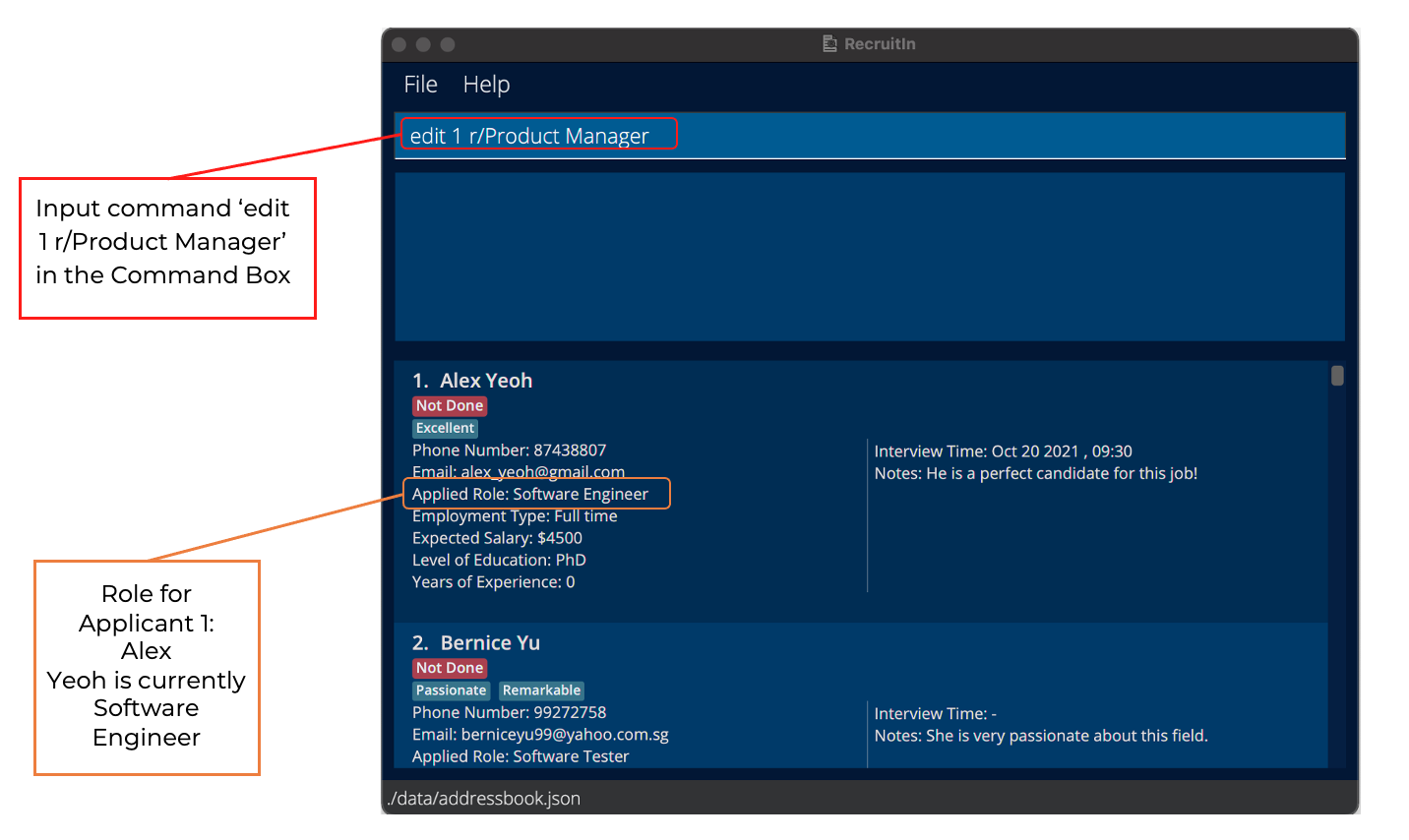
After: 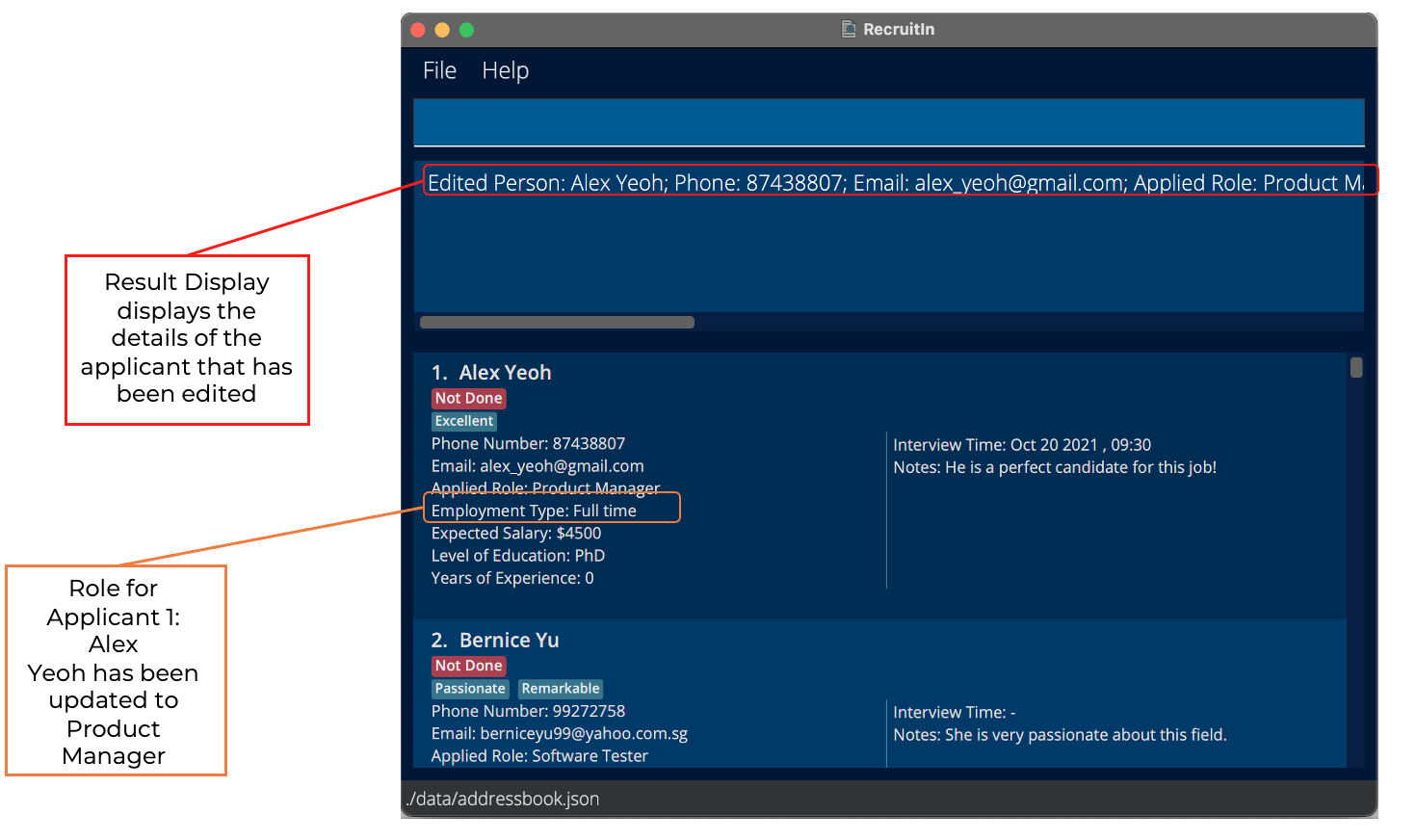
Prefix parameters for edit command must follow the same parameter specifications as add command:
- You may
- refer to Add Parameter Specifications for detailed parameter specifications.
- refer to add parameter specifications for specific prefixes by clicking on relevant links in the table below.
| Parameter | Prefix | Specifications |
|---|---|---|
| NAME | n/ |
name |
| PHONE_NUMBER | p/ |
phone_number |
| EMAIL_ADDRESS | e/ |
email_address |
| ROLE | r/ |
role |
| EMPLOYMENT_TYPE | et/ |
employment_type |
| EXPECTED_SALARY | s/ |
expected_salary |
| LEVEL_OF_EDUCATION | l/ |
level_of_education |
| YEARS_OF_EXPERIENCE | y/ |
years_of_experience |
| TAG | t/ |
tag |
| INTERVIEW | i/ |
interview |
| NOTES | nt/ |
notes |
Listing all applicants : list
The list command shows a list of all applicants in RecruitIn.
Format: list
Deleting an applicant : delete
The delete command deletes applicants by their index from the applicants list in RecruitIn.
Format: delete INDEX...
Note: As mentioned in Basic Command Format, you can delete multiple applicants by including one or more indexes here.
- The
INDEXrefers to the index number shown in the displayed applicants list. -
INDEXmust be a positive integer such as 1, 2, 3, … -
INDEXin RecruitIn starts from one. - You should type at least one
INDEX. (i.e.deleteis not a valid command) - You should not type duplicate
INDEXs. (i.e.delete 2 2is not a valid command) - You should not type
INDEXwhich exceeds the total number of applicants in the displayed applicants list.
Examples:
- After you execute the command
list,delete 1deletes the 1st applicant listed in RecruitIn. - After you execute the command
find n/John,delete 1deletes the 1st applicant in the results of thefindcommand. - After you execute the command
list,delete 1 2deletes the 1st and 2nd applicants listed in RecruitIn.
Before: 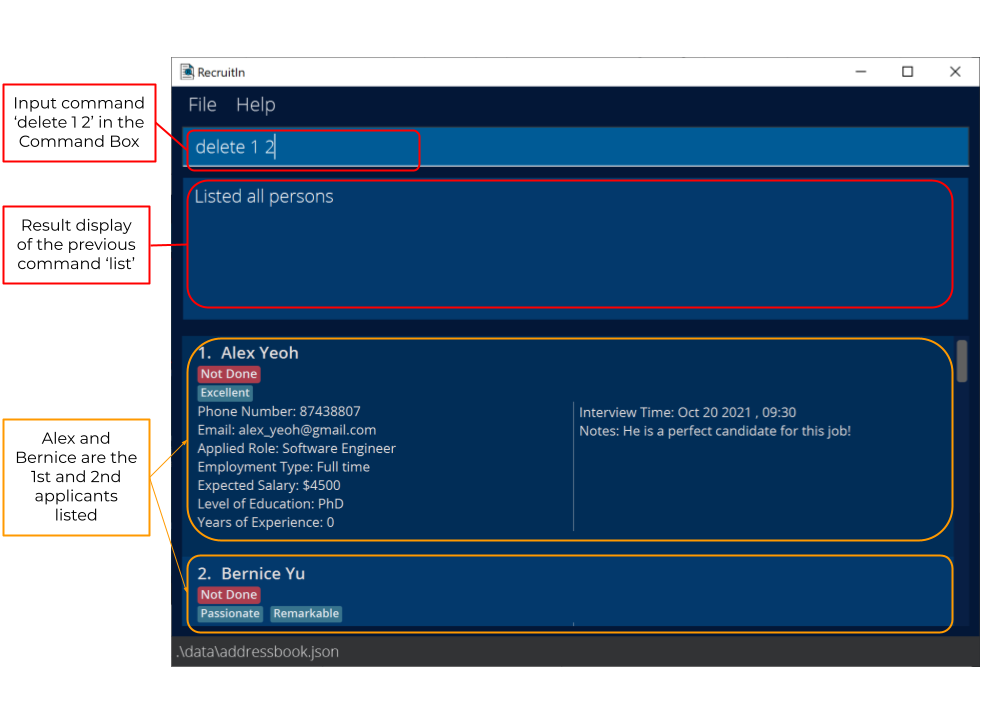 After:
Finding an applicant : find
The find command finds applicants by specific prefixes.
Format: find [n/NAME] [p/PHONE_NUMBER] [e/EMAIL_ADDRESS] [r/ROLE] [et/EMPLOYMENT_TYPE] [s/EXPECTED_SALARY] [l/LEVEL_OF_EDUCATION] [y/YEARS_OF_EXPERIENCE] [t/TAG] [i/INTERVIEW] [nt/NOTES] [d/DONE]
Note: As mentioned in Basic Command Format, you can include one or more of the search terms.
- You can key in parameters in either UPPER CASE or small case.
- If you key in multiple of the same prefix (e.g.
find n/alex n/bernice) , the program will only find you applicants based on the last prefix (i.e.n/bernice). - You can key in each prefix with multiple keywords separated by whitespace, e.g.
n/John Mary,t/friend colleague
- You can search for tags using multiple keywords by providing your parameters separated by whitespace in a
t/prefix. (i.e.find t/smart kind)- This is different from
addandeditcommands which require tag parameters to be provided separately. (i.e.edit 1 t/smart t/kind)
- This is different from
- You should not find applicants by a prefix with empty parameters. (i.e.
find d/will show you all applicants unfiltered by their done status)
Examples:
-
find n/alex n/bernicefinds you all applicants with onlyberniceas values for name prefix.
Before: 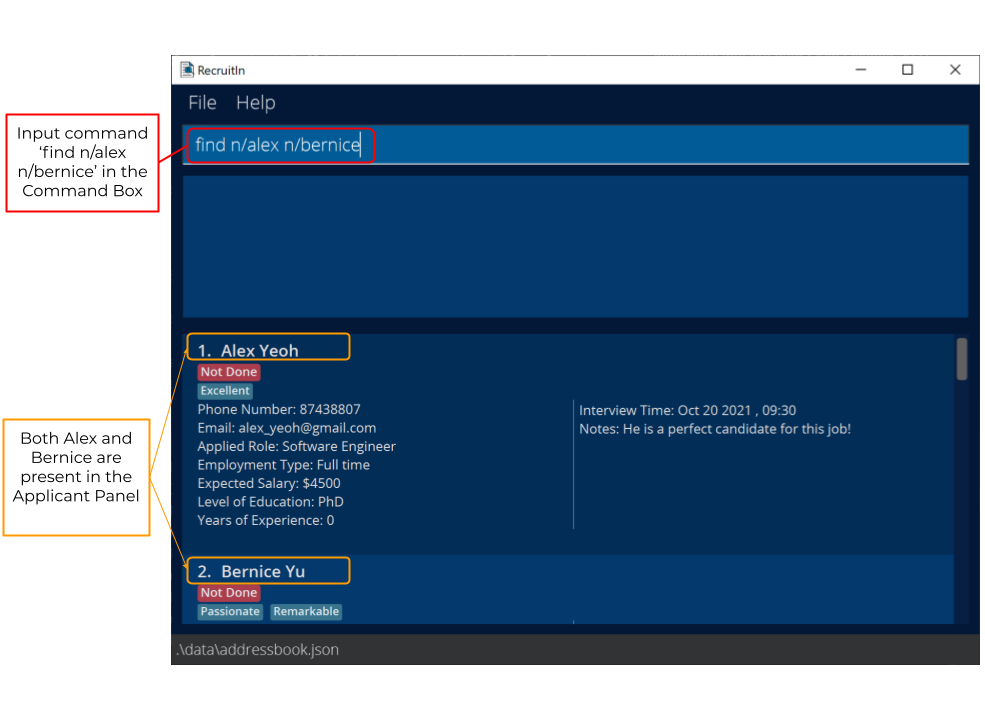 After: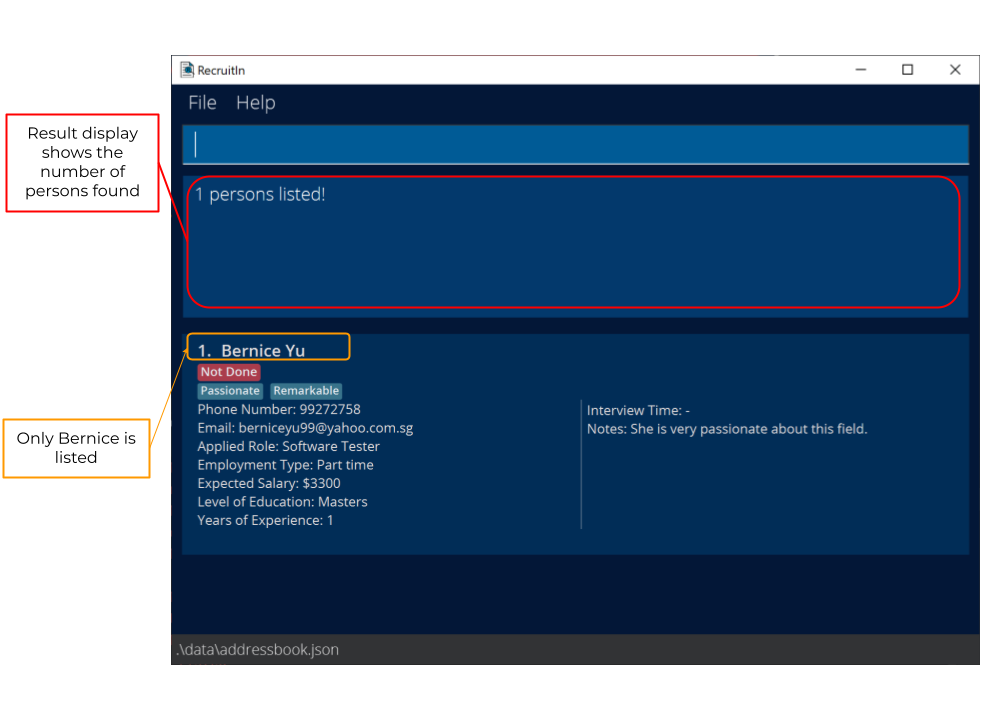
-
find n/John Maryfinds you all applicants with eitherJohnorMaryas values for name prefix. -
find t/friend colleaguefinds you all applicants withfriendorcolleagueas values for tag prefix. find n/John Mary t/friend colleaguefind n/Bob p/87654321 e/bob@gmail.com r/Software Engineering et/Full time s/4000 l/High School y/2 nt/has the credentials d/Not Done
Prefix parameters for find command must follow the following parameter specifications:
- You may
- refer to Find Parameter Specifications for detailed parameter specifications, or
- refer to find parameter specifications for a specific prefix by clicking on the relevant link in the table below.
| Parameter | Prefix | Specifications |
|---|---|---|
| NAME | n/ |
name |
| PHONE_NUMBER | p/ |
phone_number |
| EMAIL_ADDRESS | e/ |
email_address |
| ROLE | r/ |
role |
| EMPLOYMENT_TYPE | et/ |
employment_type |
| EXPECTED_SALARY | s/ |
expected_salary |
| LEVEL_OF_EDUCATION | l/ |
level_of_education |
| YEARS_OF_EXPERIENCE | y/ |
years_of_experience |
| TAG | t/ |
tag |
| INTERVIEW | i/ |
interview |
| NOTES | nt/ |
notes |
| DONE | d/ |
done |
Filtering interviews : filter_interview
The filter_interview command filters applicants by interview dates based on whether they are upcoming or have past current date and time.
Differs from find i/ as it is not returning you all applicants with a specific interview date but
rather all applicants with interviews that fall into the same group (past or future).
Format: filter_interview past or filter_interview future
-
filter_interview pastshows you applicants with interviews that were in the past (compared to the current date and time). -
filter_interview futureshows you applicants with interviews that are coming up in the future (compared to the current date and time).
Before: 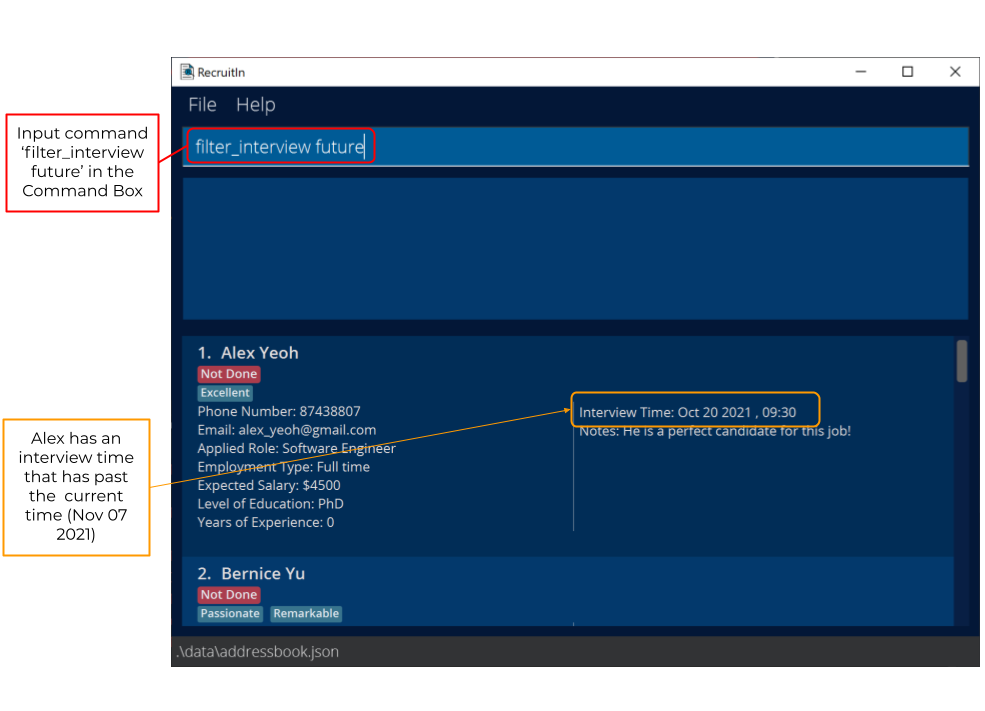 After: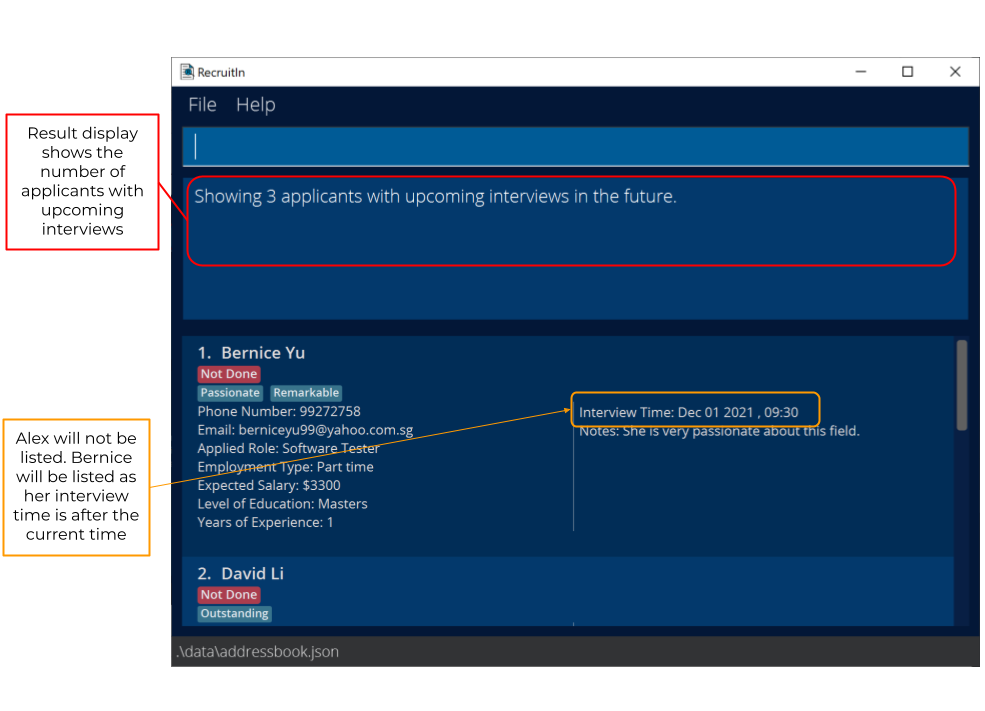
- You should give either
pastorfutureas a parameter afterfilter_interview, but not both. - You can type in either UPPER CASE or small case for
pastandfuture.
Examples:
- Let’s assume that the current time is [29th October 2021, 1600].
- If you type
filter_interview pastorfilter_interview pAsTin the command box, you are able to see applicants with interviews that were before and including [29th October 2021, 1600]. - If you type
filter_interview futureorfilter_interview fUTUREin the command box, you are able to see applicants with interviews that are after [29th October 2021, 1600].
Showing search terms : show
The show command shows you unique search terms which you can use for a specific prefix.
Format: show [n/] [p/] [e/] [r/] [et/] [s/] [l/] [y/] [t/] [i/]
Note: As mentioned in Basic Command Format, you can include any one of the prefixes in square brackets here.
- You should type only 1 prefix that you want the program to show.
- If you type multiple prefixes after
show, the program will only show you the unique search terms found for the first prefix parameter.
- If you type multiple prefixes after
Examples:
-
show i/will display a list consisting of all interview timings. -
show n/ i/will display a list consisting of all names.
Before: 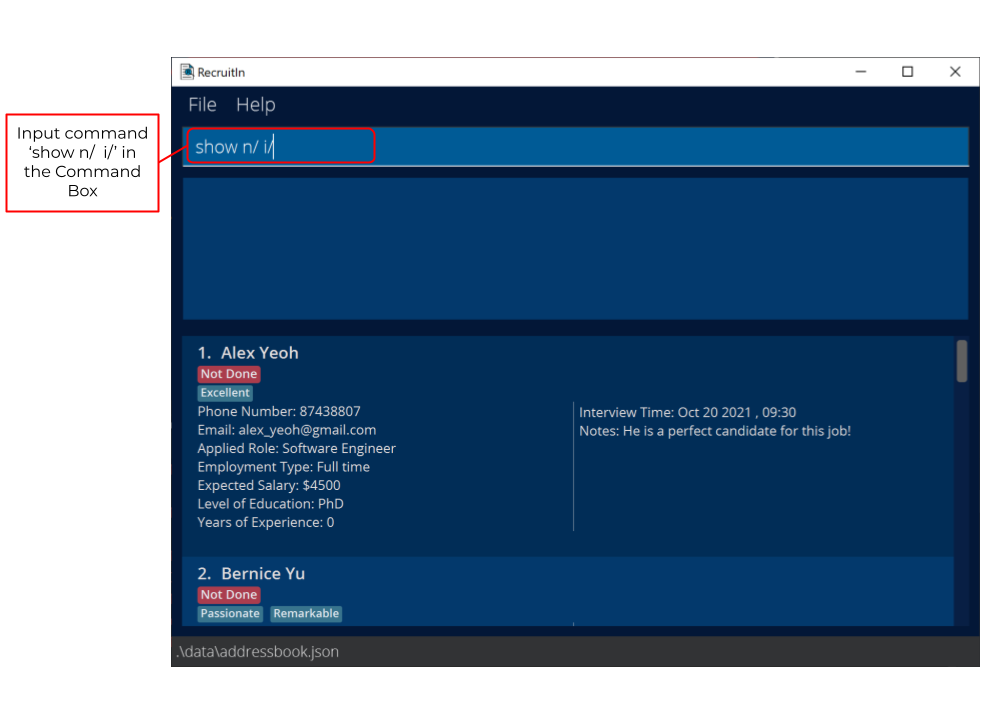 After: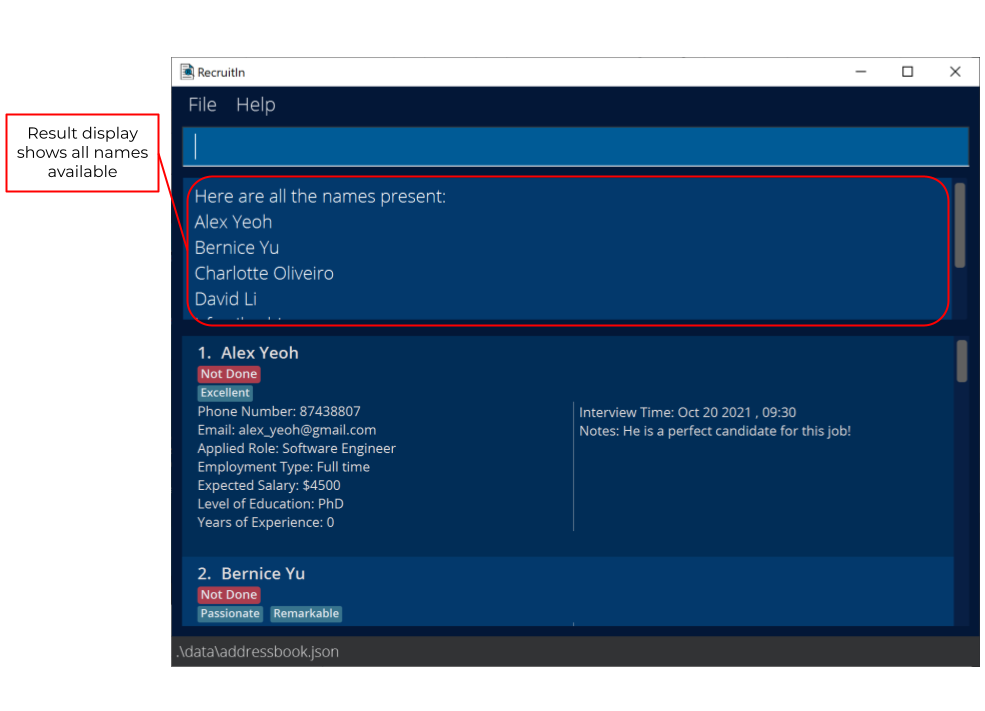
Marking an applicant : mark
Every applicant in RecruitIn will have a status of either Done or Not Done.
A Done status means that you are done handling the applicant and no longer need to keep their details.
The mark command marks the specified applicant(s) in RecruitIn by changing their status to Done.
Format: mark INDEX…
- RecruitIn marks the applicant at the specified
INDEXes asDone. -
INDEXrefers to the number shown in RecruitIn’s displayed applicants list. -
INDEXmust be a positive whole number, i.e. 1, 2, 3, … -
INDEXshould not exceed the total number of applicants in RecruitIn’s displayed applicants list. -
INDEXin RecruitIn starts from one. - You must give at least one
INDEX. (i.e.markis not a valid command) - You cannot give duplicate
INDEXes. (i.e.mark 2 2is not a valid command) - You cannot mark an applicant that has status
Done.
Examples:
- After using the command
list,mark 1marks the 1st applicant listed in RecruitIn asDone.
Before: 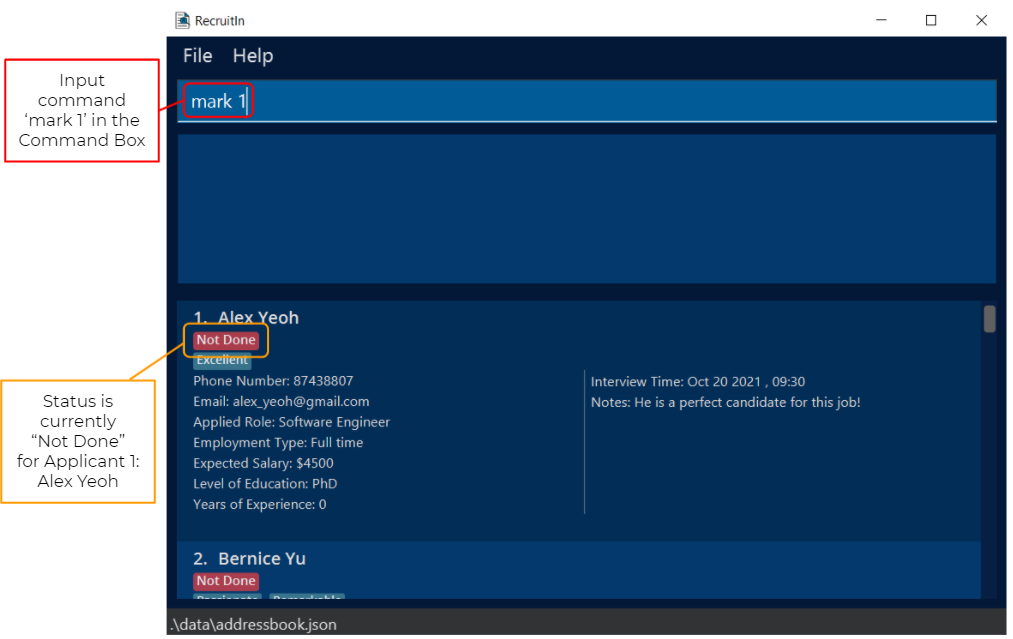
After: 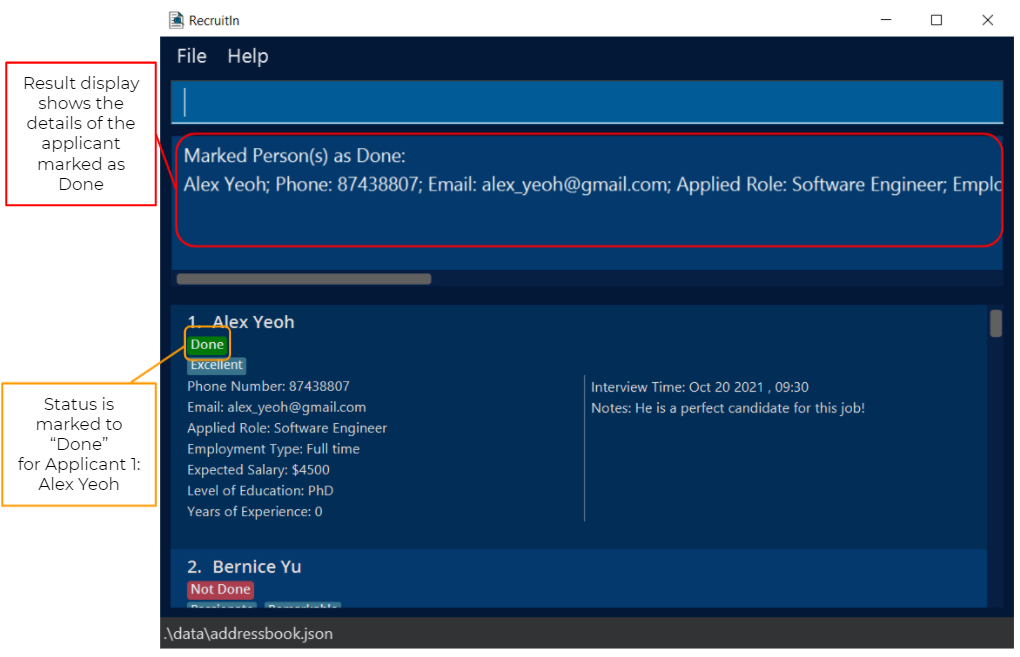
- After using the command
list,mark 2 4 6marks the 2nd, 4th and 6th applicant listed in RecruitIn asDone. - After using the command
find n/John,mark 1marks the 1st applicant listed in RecruitIn’s results of thefindcommand asDone.
Unmarking an applicant : unmark
Every applicant in RecruitIn will have a status of either Done or Not Done.
A Not Done status means that you are still handling the applicant and still need to keep their details.
The unmark command unmarks the specified applicant(s) in RecruitIn by changing their status to Not Done.
Format: unmark INDEX…
- RecruitIn unmarks the applicant at the specified
INDEXes toNot Done. -
INDEXrefers to the number shown in RecruitIn’s displayed applicants list. -
INDEXmust be a positive whole number, i.e. 1, 2, 3, … -
INDEXshould not exceed the total number of applicants in RecruitIn’s displayed applicants list. -
INDEXin RecruitIn starts from one. - You must give at least one
INDEX. (i.e.unmarkis not a valid command) - You cannot give duplicate
INDEXes. (i.e.delete 2 2is not a valid command) - You cannot unmark an applicant that has status
Not Done.
Examples:
- After using the command
list,ummark 1unmarks the 1st applicant listed in RecruitIn toNot Done.
Before: 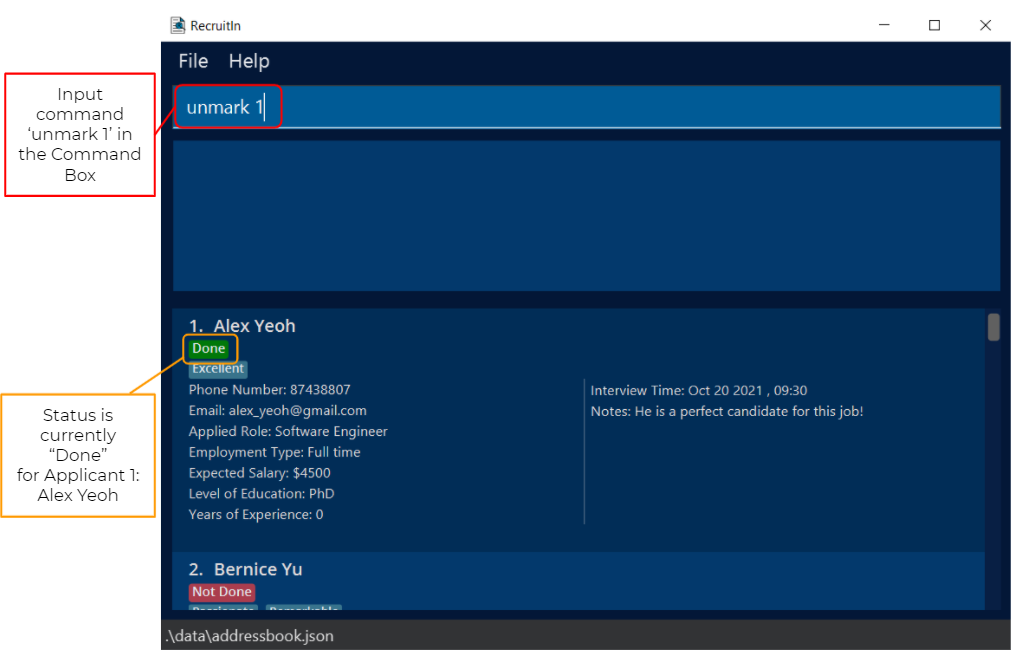
After: 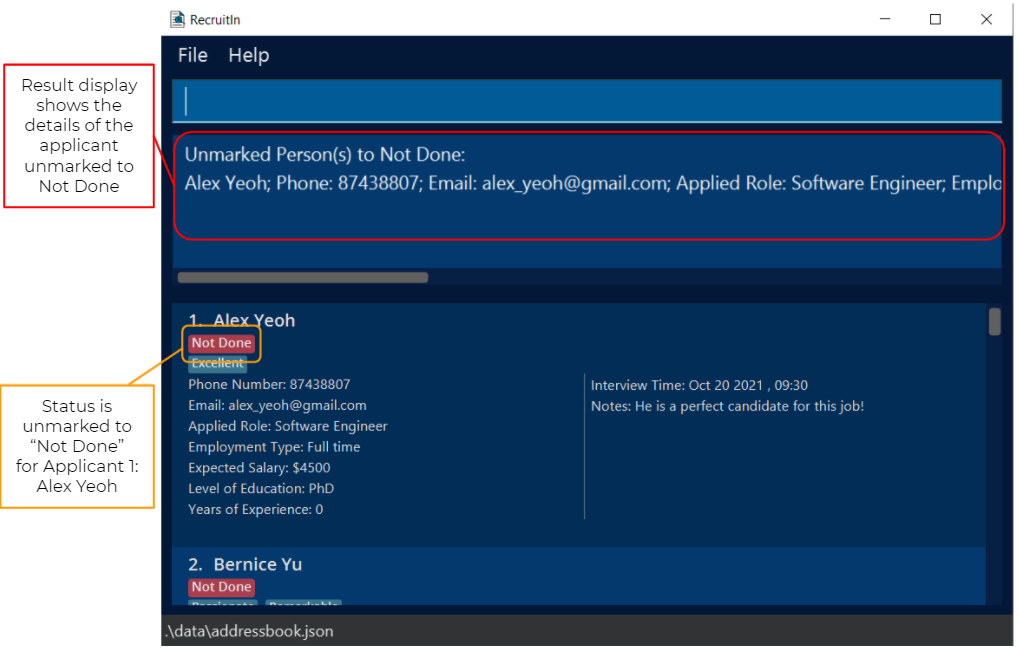
- After using the command
list,unmark 2 4 6unmarks the 2nd, 4th and 6th applicant listed in RecruitIn toNot Done. - After using the command
find n/John,unmark 1unmarks the 1st applicant listed in RecruitIn’s results of thefindcommand toNot Done.
Deleting marked applicants : delete_marked
The delete_marked command deletes all applicants that are currently marked as Done.
This provides an easy way for you to delete the data of all applicants you no longer need.
Format: delete_marked
Example:
Before: 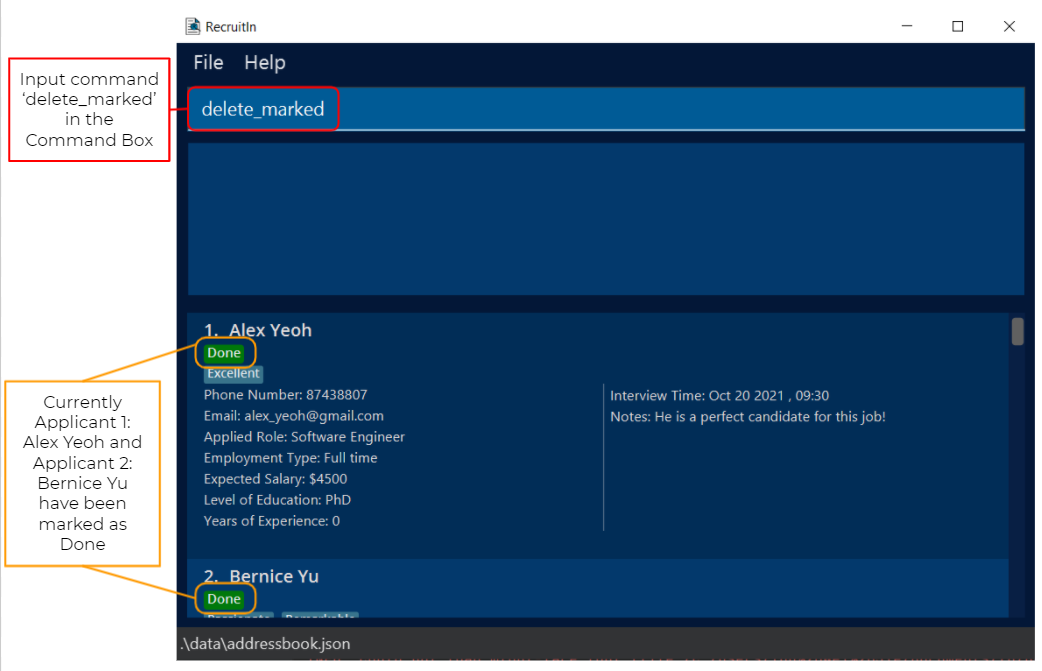
After: 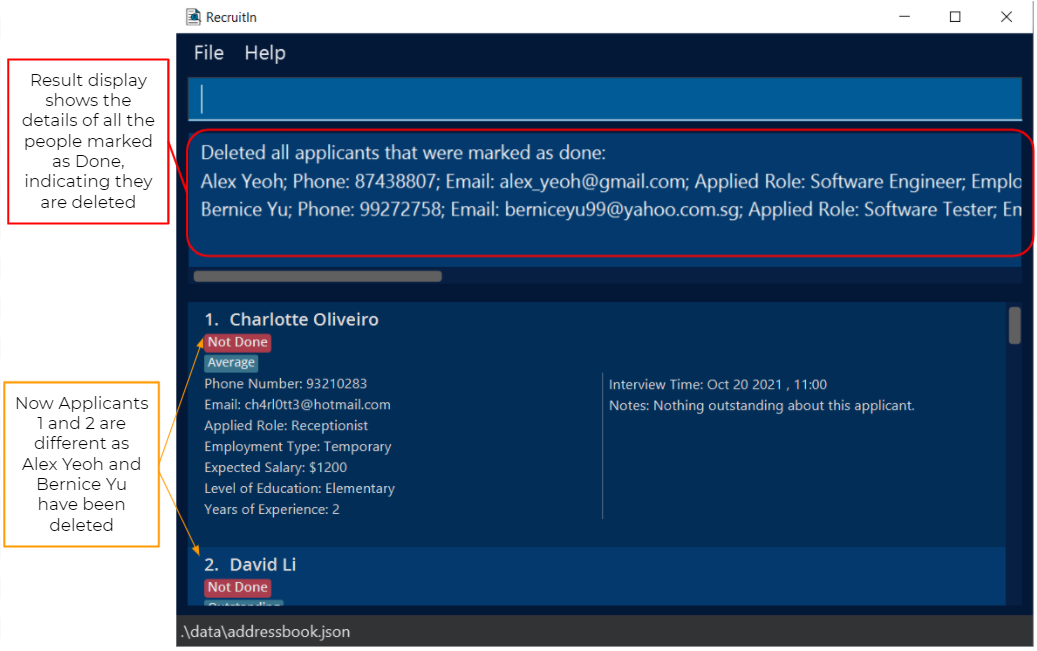
Clearing all data : clear
The clear command deletes all applicants in RecruitIn.
Format: clear
Exiting the program : exit
The exit command causes RecruitIn to close and exit.
Format: exit
You can also exit RecruitIn by clicking on the ‘X’ button found on the top right side of the app. Alternatively, you can also click on the ‘File’ button on the upper left of the app, before clicking the pop-up ‘Exit’ button.
Saving the data
Whenever you use any command which edits, updates or adds data, RecruitIn automatically saves the data. You do not need to manually save data with any command. The saved data also automatically loads when the application starts.
Editing the data file
RecruitIn saves the applicant data as a String in /data/applicants.json.
If you are advanced enough, you are welcome to update data directly by editing this data file.
Example of the format of how data is saved for an applicant:
{
"persons": [
{
"name" : "Alice Yeoh",
"phone" : "87438807",
"email" : "alexyeoh@example.com",
"role" : "Software Engineering",
"employmentType" : "Full time",
"expectedSalary" : "3600",
"levelOfEducation" : "High School",
"experience" : "2",
"tagged" : [],
"interview" : "-",
"notes" : "This applicant is a suitable candidate for the job!",
"done": "Not Done"
}
]
}
Prefix Parameter Specifications {Advanced}
Note: Alphanumeric characters refers specifically to characters a-z, A-Z and 0-9.
Add Parameters
- Return to Add.
-
Return to Edit.
-
NAME
n/- A NAME parameter should only contain alphanumeric characters. You can have spaces in between words.
- For example:
- NAME parameters such as
John,Mary Sueand9ine 6ixare acceptable. - NAME parameters such as
J@hn,Mary S^eandB{}bare not acceptable.
- NAME parameters such as
-
PHONE_NUMBER
p/- A PHONE_NUMBER parameter should contain a minimum of 3 digits. You cannot input any characters other than the digits 0-9.
- For example:
- PHONE_NUMBER parameters such as
99999999and999are acceptable. - PHONE_NUMBER parameters such as
9999 9999and88are not acceptable.
- PHONE_NUMBER parameters such as
-
EMAIL_ADDRESS
e/- An EMAIL_ADDRESS parameter should contain a local part and a domain part, separated by the
@character. (i.e. local part@domain part) -
Local part specifications:
- Your local part must start with and end with an alphanumeric character.
- You can separate alphanumeric characters with any one of these characters:
+_.-. (i.e.John-a-bc)
-
Domain part specifications:
- Your domain part must contain at least 2 domain labels, with each domain label separated by a
.. - You must start and end each domain label with an alphanumeric character.
- Within each domain label, you can separate alphanumeric characters with
-. (i.e.John@u-u.sg) - Each domain label must have at least 1 alphanumeric character, except the final domain label
which must have at least 2 alphanumeric characters. (i.e.
John@u.sgis valid)
- Your domain part must contain at least 2 domain labels, with each domain label separated by a
- For example:
- EMAIL_ADDRESS parameters such as
PeterJack_1190@example.comande1234567@u.nus.eduare acceptable. - EMAIL_ADDRESS parameters such as
peterjack@example.candpeter..jack@example.comare unacceptable.
- EMAIL_ADDRESS parameters such as
- An EMAIL_ADDRESS parameter should contain a local part and a domain part, separated by the
-
ROLE
r/- A ROLE parameter should only contain alphanumeric characters. You can have spaces in between words.
- For example:
- ROLE parameters such as
Software EngineerandSales Assistantare acceptable. - ROLE parameters such as
Softw@re Engin^^randDay + Night Security Guardare not acceptable.
- ROLE parameters such as
-
EMPLOYMENT_TYPE
et/- An EMPLOYMENT_TYPE parameter should be one of the following:
Full time,Part time,TemporaryorInternship. - An EMPLOYMENT_TYPE is case-insensitive.
- For example:
- EMPLOYMENT_TYPE parameters such as
Full timeandInternshipare acceptable. - EMPLOYMENT_TYPE parameters such as
fUlL tiMeandiNtErnShIPare acceptable. - EMPLOYMENT_TYPE parameters such as
Long termare not acceptable.
- EMPLOYMENT_TYPE parameters such as
- An EMPLOYMENT_TYPE parameter should be one of the following:
-
EXPECTED_SALARY
s/- An EXPECTED_SALARY parameter should only be non-negative whole numbers.
- An EXPECTED_SALARY can range from 0 to 2^(31) - 1 inclusive.
- For example:
- EXPECTED_SALARY parameters such as
0and3500are acceptable. - EXPECTED_SALARY parameters such as
-600and~350are not acceptable.
- EXPECTED_SALARY parameters such as
- An EXPECTED_SALARY parameter should only be non-negative whole numbers.
-
LEVEL_OF_EDUCATION
l/- A LEVEL_OF_EDUCATION parameter should be one of the following:
Elementary,Middle School,High School,University,Bachelors,MastersorPhD. - A LEVEL_OF_EDUCATION is case-insensitive.
- For example:
- LEVEL_OF_EDUCATION parameters such as
Middle SchoolandPhDare acceptable. - LEVEL_OF_EDUCATION parameters such as
miDDlE scHoOLandphDare acceptable. - LEVEL_OF_EDUCATION parameters such as
Kindergartenare not acceptable.
- LEVEL_OF_EDUCATION parameters such as
- A LEVEL_OF_EDUCATION parameter should be one of the following:
-
YEARS_OF_EXPERIENCE
y/- A YEARS_OF_EXPERIENCE parameter should be a non-negative number with intervals of 0.5
- A YEARS_OF_EXPERIENCE can be at most 67 (re-employment age in Singapore).
- For example:
- YEARS_OF_EXPERIENCE parameters such as
0and10are acceptable. - YEARS_OF_EXPERIENCE parameters such as
0.5and3.0are acceptable. - YEARS_OF_EXPERIENCE parameters such as
-1,3.1, and100are not acceptable.
- YEARS_OF_EXPERIENCE parameters such as
- A YEARS_OF_EXPERIENCE parameter should be a non-negative number with intervals of 0.5
-
TAG
t/- A TAG parameter should only contain alphanumeric characters. You cannot have spaces in between words.
- For example:
- TAG parameters such as
friendsandcolleaguesare allowed. - TAG parameters such as
best friends,old colleaguesandseni@rare not allowed.
- TAG parameters such as
-
INTERVIEW
i/- An INTERVIEW parameter should be a legitimate date and follow the DateTime format
yyyy-M-d, H:m.- The format for Year is strictly 4 digits while others (i.e. Month, Day, Hours, Minutes) can be either 1 or 2 digits.
- For example:
- INTERVIEW parameters such as
2021-08-09, 13:00and2022-1-3, 3:00are acceptable. - INTERVIEW parameters such as
morning,2021.10.21,2021-10-22 13:00and2021-02-30, 10:30(not an existing date) are not acceptable.
- INTERVIEW parameters such as
- An INTERVIEW parameter should be a legitimate date and follow the DateTime format
-
NOTES
nt/- A NOTES parameter can contain any character, number or symbol as there are no restrictions in place.
- For example:
- NOTES parameters such as
This candidate is good!and@Applicant123 is suitab13 for th3 job!are acceptable.
- NOTES parameters such as
Find Parameters
- Return to Find
Note that keywords refer to the words separated by whitespace in your parameters for each category.
For example, if your input is find n/Alex Bernice, Alex and Bernice are your keywords in your NAME parameter.
-
NAME
n/- A NAME parameter matches with an existing stored Name only if at least 1 keyword is equal to at least 1 word in the Name.
- All the keywords that you provide in your NAME parameter must comply with the parameter specifications for add given here.
- For example:
- A
Johnparameter can match with Names such asJohn TanorJohn Lee. - A
John Maryparameter can match with Names such asMary John,Mary LeeorLong John.
- A
-
PHONE_NUMBER
p/- A PHONE_NUMBER parameter matches with an existing stored Phone Number only if at least 1 keyword is equal to the Phone Number.
- All the keywords that you provide in your PHONE_NUMBER parameter must comply with the parameter specifications for add given here.
- For example:
- A
99999999parameter can only match with Phone Numbers that are99999999. - A
99999999 88888888parameter can only match with Phone Numbers that are99999999and88888888.
- A
-
EMAIL_ADDRESS
e/- An EMAIL_ADDRESS parameter matches with an existing stored Email Address only if at least 1 keyword is equal to the Email Address.
- All the keywords that you provide in your EMAIL_ADDRESS parameter must comply with the parameter specifications for add given here.
- For example:
- A
alexyeoh@example.comparameter can match with Email Addresses such asalexyeoh@example.com. - A
alexyeoh@example.com marysue@gmail.comparameter can match with Email Addresses such asalexyeoh@example.comandmarysue@gmail.com.
- A
-
ROLE
r/- A ROLE parameter matches with an existing stored Role only if the entire input is contained in the Role.
- All the keywords that you provide in your ROLE parameter must comply with the parameter specifications for add given here.
- For example:
- A
Softwareparameter can match with Roles such asSoftware Engineer,SoftwareorSoftware Developer - A
Software Engineerparameter can match with Roles such asSoftware EngineerorSenior Software Engineerbut not with Roles such asSoftwareorSoftware Developer.
- A
-
EMPLOYMENT_TYPE
et/- An EMPLOYMENT_TYPE parameter matches with an existing stored Employment Type only if the Employment Type starts with any of the keywords.
- All possible Employment Type terms that comply with the parameter specifications for add are given here. Keywords that you provide as a EMPLOYMENT_TYPE parameter must be words that these terms start with.
- For example:
- A
Full timeorfull timeorfullparameter will match only with Employment Types that areFull time - A
Full partparameter will match with all Employment Types that areFull timeandPart time - A
temp Internparameter will match with all Employment Types that areTemporaryandInternship - A
full time bobparameter is invalid asbobis not a word that any of the possible Employment Type terms start with.
- A
-
EXPECTED_SALARY
s/- An EXPECTED_SALARY parameter matches with an existing stored Expected Salary only if at least 1 keyword is within a range of
500from the Expected Salary. - All the keywords that you provide in your EXPECTED_SALARY parameter must comply with the parameter specifications for add given here.
- For example:
- A
3000parameter can match with Expected Salarys that range from2500to3500inclusive. - A
2500 5000parameter can match with Expected Salarys from the ranges2000to3000inclusive, and4500to5500inclusive.
- A
- An EXPECTED_SALARY parameter matches with an existing stored Expected Salary only if at least 1 keyword is within a range of
-
LEVEL_OF_EDUCATION
l/- A LEVEL_OF_EDUCATION parameter matches with an existing stored Level of Education only if the Level of Education starts with any of the keywords.
- All possible Level of Education terms that comply with the parameter specifications for add are given here. Keywords that you provide as a LEVEL_OF_EDUCATION parameter must be words that these terms start with.
- For example:
- A
Hparameter will match with Level of Educations that areHigh School, but not with Level of Educations that arePhD. - A
High Schoolparameter will match with all Level of Educations that areHigh School, but not with Level of Educations that areMiddle School. - A
High Middleparameter will match with all Level of Educations that areHigh SchoolandMiddle School. - A
High School bobparameter is invalid asbobis not a word that any of the possible Level of Education terms start with.
- A
-
YEARS_OF_EXPERIENCE
y/- A YEARS_OF_EXPERIENCE parameter matches with an existing stored Years Of Experience only if at least 1 keyword is greater than or equal to the Years Of Experience.
- All the keywords that you provide in your YEARS_OF_EXPERIENCE parameter must comply with the parameter specifications for add given here.
- For example:
- A
3parameter can match with Year Of Experiences that are greater than or equal to3. - A
2 3parameter can match with Year Of Experiences that are greater than or equal to2.
- A
-
TAG
t/- Each applicant can have multiple stored Tags.
- A TAG parameter matches with an applicant’s set of Tags only if at least 1 keyword is exactly equals to at least 1 Tag within the applicant’s set of Tags.
- All the keywords that you provide in your TAG parameter must comply with the parameter specifications for add given here.
- For example:
- An
oldparameter can match with applicants that have the Tagold, even if they have other tags. - An
experienced oldparameter can match with applicants that have the Tagexperienced, orold, or both, even if they have other tags.
- An
-
INTERVIEW
i/- An INTERVIEW parameter matches with an existing stored Interview only if the keyword is a whole word (i.e. separated by space) contained in the Interview.
- All the keywords that you provide in your INTERVIEW parameter must comply with the displayed format (e.g. 20 Mar 2021, 10:30).
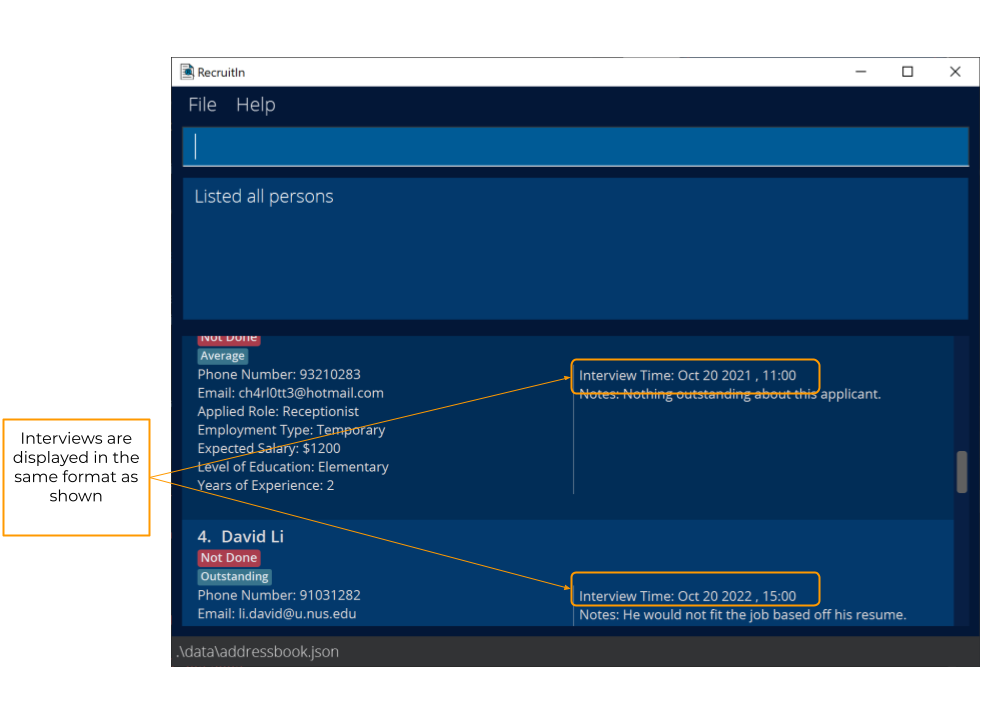
- For example:
- A
2021parameter can match with applicants that have their Interviews in the year 2021. - A
20:21parameter can match with applicants that have their Interviews at the time 20:21 on any date. - A
marparameter can match with applicants that have their Interviews in March. - However, a
9:30parameter cannot be matched with the Interview displayed as20 Mar 2021, 09:30(as 9:30 is not the whole word that is displayed, but 09:30 is).
- A
-
NOTES
nt/- A NOTES parameter matches with an existing stored Notes only if the entire input is contained in the Notes.
- All the keywords that you provide in your NOTES parameter must comply with the parameter specifications for add given here.
- For example:
- A
good in this fieldparameter can match with applicants that have Notes containinggood in this field. - A
passionateparameter can match with applicants that have Notes such aspassionate but inexperiencedandpassionate and experienced.
- A
-
DONE
d/- A DONE parameter can only be either
DoneorNot Done. - For example:
- A
Doneparameter can match with applicants that have their Done status marked as Done. - A
Not Doneparameter can match with applicants that have their Done status unmarked as Not Done. - Any other non-empty input is considered invalid.
- A
- A DONE parameter can only be either
FAQ
Q: How do I transfer my data to another computer?
A: Install the app in the other computer and overwrite the empty data file it creates with the data file that your previous RecruitIn home folder contains.
Q: How do I reset the app and get back all the sample data?
A: Navigate into the data file in your RecruitIn home folder, and delete the file addressbook.json.
Q: How do I know if I have the right version of Java installed (i.e. Java 11 or above)?
A: Open up your terminal , type java -version and press enter. You should see a variant of Java 11 or above (for example java version "11.0.9").
If you do not know how to open up your terminal, refer to the next question below.
Q: How do I open up my terminal?
A: There are different ways to open up your terminal, depending on what operating system you use.
-
MacOS:
- Open Spotlight Search by clicking on the magnifying glass icon in the upper-right corner of your desktop (or press
Command + Spaceon your keyboard) - Type in
terminalinto the Spotlight Search bar and press return.
- Open Spotlight Search by clicking on the magnifying glass icon in the upper-right corner of your desktop (or press
-
Windows:
- Press
Windows key + Ron your keyboard and press enter. - Type
cmdand press enter.
- Press
-
Linux:
- Press
ctrl + alt + Ton your keyboard.
- Press
Command summary
| Action | Format, Examples |
|---|---|
| Help | help |
| Add |
add n/NAME p/PHONE_NUMBER e/EMAIL_ADDRESS r/ROLE et/EMPLOYMENT_TYPE s/EXPECTED_SALARY l/LEVEL_OF_EDUCATION y/YEARS_OF_EXPERIENCE [t/TAG] [i/INTERVIEW] [nt/NOTES] e.g., add n/Bob p/87654321 e/bob@gmail.com r/Software Engineering et/Full time s/4000 l/High School y/2 t/friend i/2021-10-21, 20:00 nt/This applicant is a good candidate for the job!
|
| Edit |
edit INDEX [n/NAME] [p/PHONE_NUMBER] [e/EMAIL_ADDRESS] [r/ROLE] [et/EMPLOYMENT_TYPE] [s/EXPECTED_SALARY] [l/LEVEL_OF_EDUCATION] [y/YEARS_OF_EXPERIENCE] [t/TAG] [i/INTERVIEW] [nt/NOTES] e.g., edit 1 p/90909090 s/4500
|
| List | list |
| Delete |
delete INDEX...e.g., delete 3 2 5 4
|
| Find |
find [n/NAME] [p/PHONE_NUMBER] [e/EMAIL_ADDRESS] [r/ROLE] [et/EMPLOYMENT_TYPE] [s/EXPECTED_SALARY] [l/LEVEL_OF_EDUCATION] [y/YEARS_OF_EXPERIENCE] [t/TAG] [i/INTERVIEW] [nt/NOTES] [d/DONE]e.g., find n/John Mary
|
| Filter interviews |
filter_interview past or filter_interview future
|
| Show |
show [n/] [p/] [e/] [r/] [et/] [s/] [l/] [y/] [t/] [i/]e.g., show r/ n/
|
| Mark |
mark INDEX…e.g., mark 3
|
| Unmark |
unmark INDEX…e.g., unmark 3
|
| Delete marked | delete_marked |
| Clear | clear |
| Exit | exit |